How to find missing translations in Salesforce
On this page 6 sections
A missing translation does not show as an error: when a component has no translation for the user's language, Salesforce uses the org's default language, so the page simply looks untranslated in one place. To find the gaps systematically, export Translation Workbench's Outdated and untranslated file — every label with no translation, or with one whose source changed since — and read the Out of Date column in Setup → Translate. Then check the pages users actually see, in each language: the only check that shows which gaps matter.
1. Every gap in the org: the Outdated and untranslated export
- Setup → Export (Translation Workbench). You need the Manage Translation and Create Documents permissions.
- Choose Outdated and untranslated, and the languages to check.
- Salesforce prepares one file per language, emails you a link and saves it to your personal documents (Salesforce Help: export metadata translation files).
Each entry is a label that has no translation in that language, or one flagged out of date, keyed by the component it belongs to (CustomField.Account.Nickname.FieldLabel). Two ways to read it:
- As a to-do list. Hand it to a translator, and import it back when it is done.
- As a measure. Count the entries per component type. A release that adds forty untranslated field labels is visible here before anyone opens a page.
It lists every translatable label of the org — including fields no page shows, and components nobody uses any more — so it is complete, but not prioritised.
2. Labels that changed after they were translated: Out of Date
A translation can exist and still be wrong: someone renamed the field and the old translation stayed. In Setup → Translate, choose a language and a Setup Component; the Out of Date column flags each translation whose primary label was updated after it was translated (Salesforce Help: translate metadata labels). In an XLIFF export the same flag is an attribute of the entry, which Salesforce asks translators not to change.
3. The pages users see
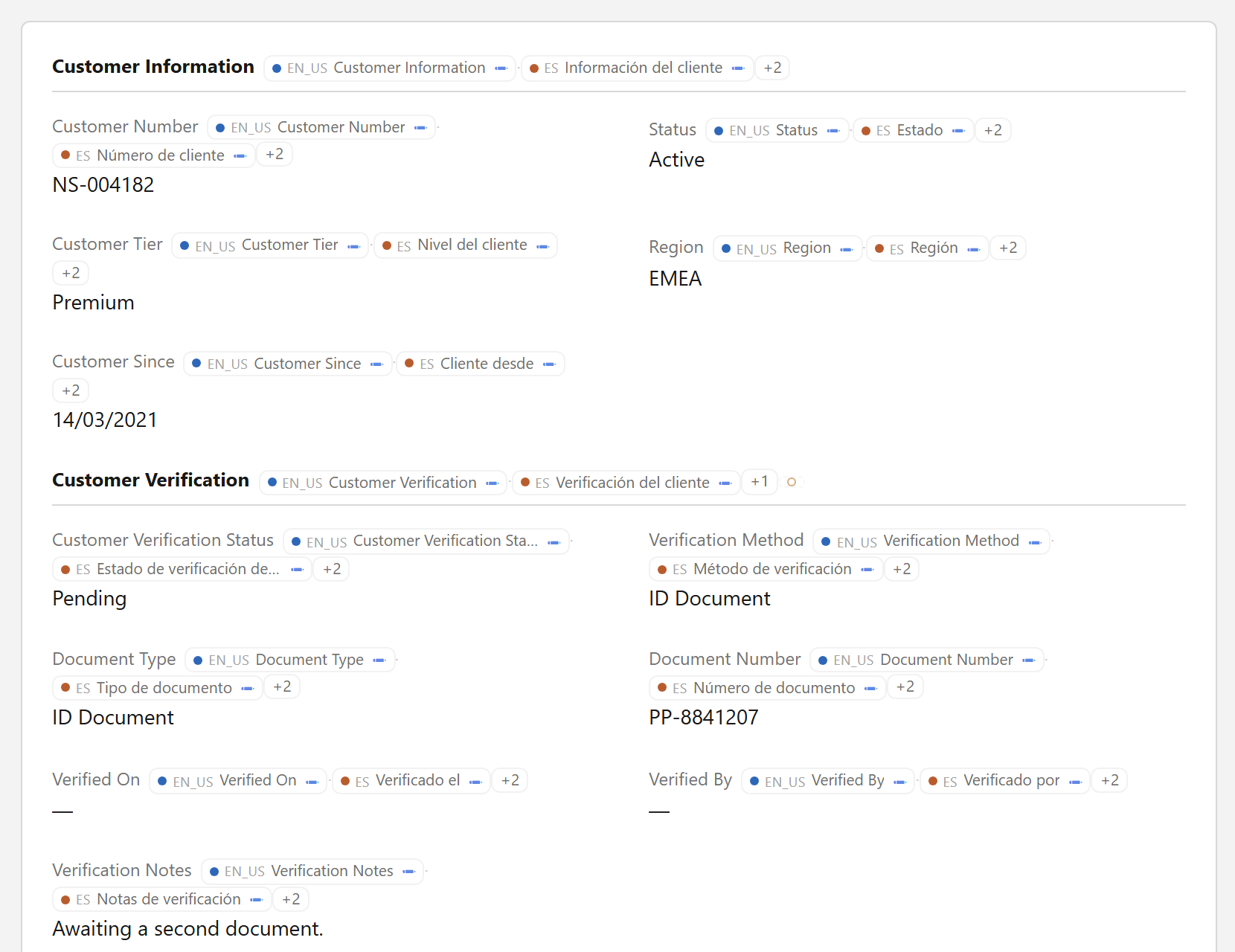
The export cannot tell you what matters most: which gaps are on the pages people use. For that, look at the pages:
- Switch your own language (personal settings → Language & Time Zone), or log in as a test user in that language.
- Open the record pages, list views and flows that changed in this release.
- For each label still in the default language, find what it is — a field, a picklist value, a Custom Label, a section — and translate it where that kind of label is translated (the map).
This is where the time goes: one language at a time, and every untranslated label still has to be traced to its component before it can be fixed. The guide to finding the metadata behind Lightning text covers the tracing.
A release checklist for multilingual orgs
- ☐ The new and renamed labels of this release are listed (the deployment's components are the list).
- ☐ The Outdated and untranslated export for each language has no entry for them.
- ☐ The translations were deployed with the components, to the same org — a translation made in a sandbox is not in production until it is deployed (comparing orgs).
- ☐ The changed pages were opened in each language, by someone who reads it.
- ☐ Text built by formulas or code from picklist values was checked separately: it shows API names, not translations (picklist values).
Why "identical" deserves its own check
A translation that equals the source text — Status translated as Status — is not missing, so no export flags it. Sometimes that is right (a product name, a word the language borrowed); often it is a placeholder someone typed to make an import pass. A review of the translations identical to their source, per language — the Bilingual export puts both side by side — catches the second kind.
Related guides
- Translating a Salesforce org: where every label is translatedThe map — which Setup page translates which label, how to translate many at once, the metadata types behind them, and how to check the result.
- How to translate picklist values in SalesforceCustom picklists, global value sets and standard picklists each keep their translations in a different place; how SOQL, reports and formulas treat them; and a checklist for a value that will not translate.
- How to compare translations between Salesforce orgsSandbox against production — with Translation Workbench's Bilingual export, or a Metadata API retrieve and a diff — and what each comparison can and cannot tell you.