Product
Everything Sextant does, and how it fits together
One index of your org's metadata, read from Salesforce as you and kept in your browser — and seven jobs built on it, in three places: on the Salesforce page, in the toolbar, and in Sextant's own tab.
The map
Seven jobs, one index
They are one product, not seven tools. The component you point at on a page is the one Search finds, the one the Workspace keeps, the one a comparison lines up across orgs and the one Activity dates — because every surface reads the same index and names a component the same way.
- FindSearch · Quick Search · Inspect on hoverSextant · toolbar · Salesforce page
- UnderstandThe inspector · hover · every language side by sideSalesforce page · Sextant
- TranslateMulti Translate · Translate All · edit in placeSextant · Salesforce page
- OrganizeWorkspace · pins · groups · notesSextant
- CompareMulti-org comparison · snapshots · org profilesSextant
- RememberActivity · observed changes · deployments noticedSextant
- ReleaseDeploy tray · package.xml · New Custom LabelsSextant
Find
From the words on the screen to the component
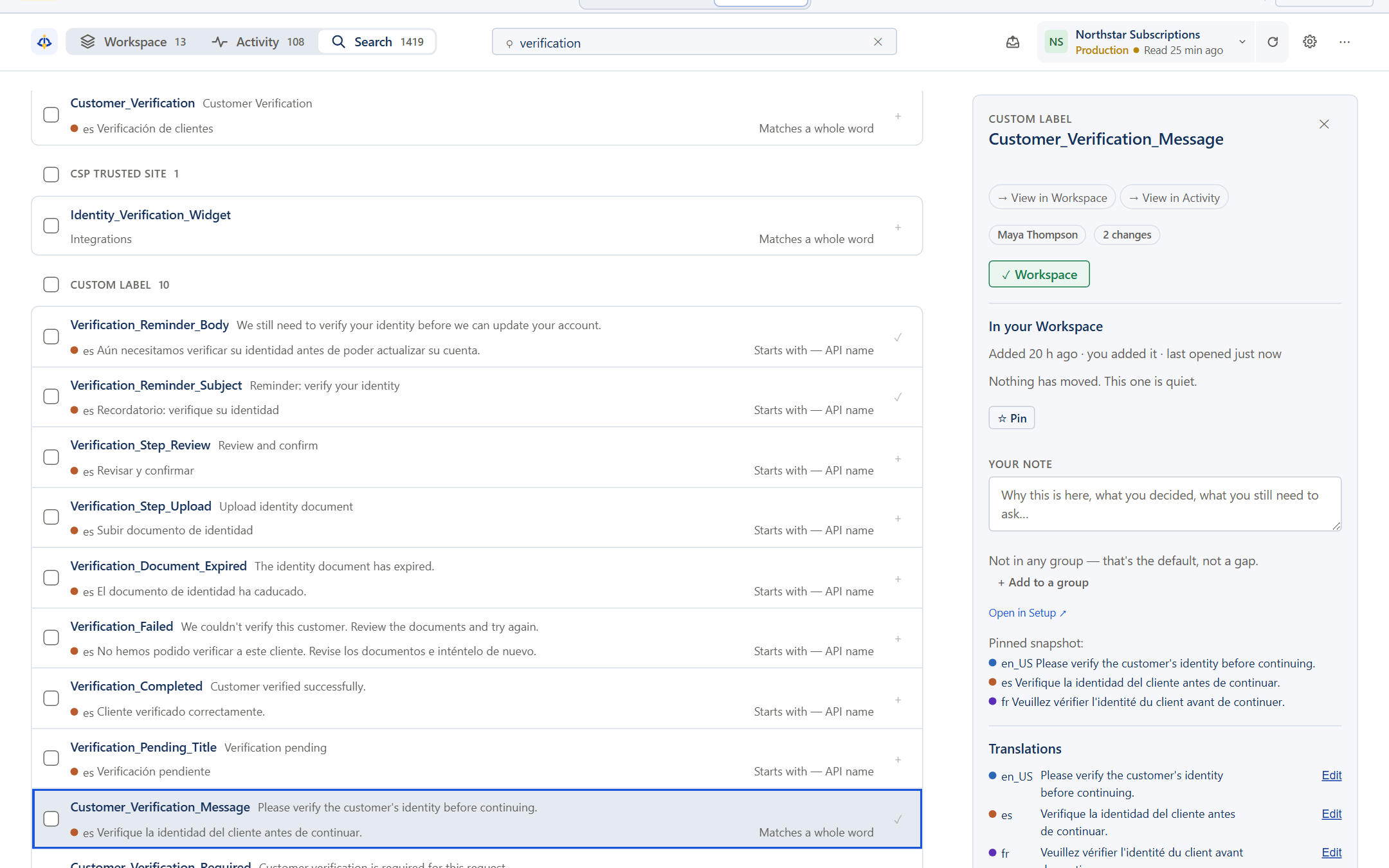
Search starts from what someone actually saw — a label, a phrase in any language the org has, the start of an API name — and answers with components, not pages. It covers everything Sextant has read from the org, not only the translatable part, and says why each result matched.
For the admin answering a ticket that quotes a screen, and the developer looking for the API name behind a label.
- Search
- Every language and every type Sextant has read: objects, fields, picklist values, Custom Labels, layouts, flows, Apex. Exact translations first; each result says whether it matched a translation, a whole word or the start of an API name. Filter by type, by whether it is in your Workspace and by whether it changed recently.In Sextant's tab
- Quick Search
- The same index from the toolbar menu, on any tab — Setup, a ticket, your mail. Enter opens the component in Salesforce or in Sextant, whichever you chose in Settings; your last two stay as recents.In the toolbar
- Inspect on hover
- When the text is already in front of you on a Lightning page, holding a key and pointing is the search. See Understand, below.On the Salesforce page
Understand
One answer about what a component is
The inspector is where every surface ends up: the component's type, API name and object, every language side by side, what Sextant has seen happen to it, and the way to it in Setup. When a string cannot be identified with confidence, Sextant says Unknown origin — a confident wrong answer costs more than no answer.
For anyone who has to change something and first needs to know exactly what it is.
- The inspector
- Type, API name and object, ready to copy; every language the org has enabled, with a missing translation and one identical to the source called out; its history in this org; a link to it in Setup.In Sextant's tab
- Inspect on hover
- Hold Shift and point at a label, a field, a picklist value or a Custom Label on a Lightning page. The tooltip is the inspector's first answer, and it follows the pointer while the key is held.On the Salesforce page
- One answer or none
- Never a ranked list of possible origins. Where Salesforce's page gives Sextant nothing it can prove, the answer is silence, said plainly.Everywhere
Translate
Translate the set you are working on, in every language the org uses
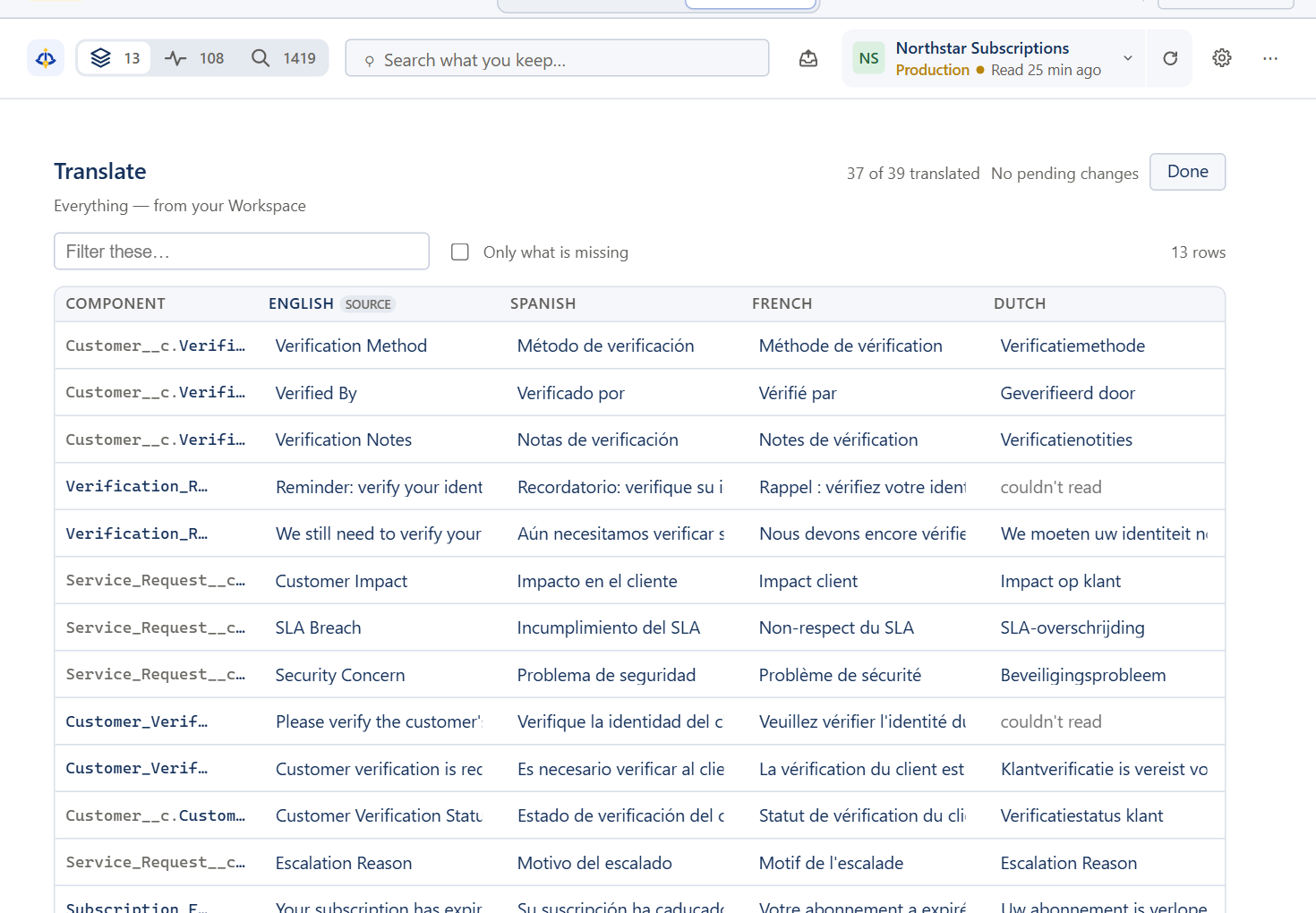
Three ways in, one way out. Translate one value where you found it, see a whole page's translations at once, or work down every language of your working set in one grid — and every one of them saves through the same path: re-read first, production always asks, a batch fails or succeeds whole.
For the admin who owns an org's languages, and the translator handed a release's worth of labels.
- Multi Translate
- The components in your Workspace, one row each, a column per language the org has. Filter them, show only what is missing, type down a column: Enter saves and moves down, Tab moves across. Nothing reaches Salesforce until you deploy the batch.In Sextant's tab
- Translate All
- One key on a Lightning page marks every label on it with its translations, and with a mark where a language is missing.On the Salesforce page
- Edit in place
- In the inspector, open a language and type. Save & deploy sends that one change; Add to deploy keeps it with the rest for one batch.In Sextant's tab
Organize
Keep what you touch
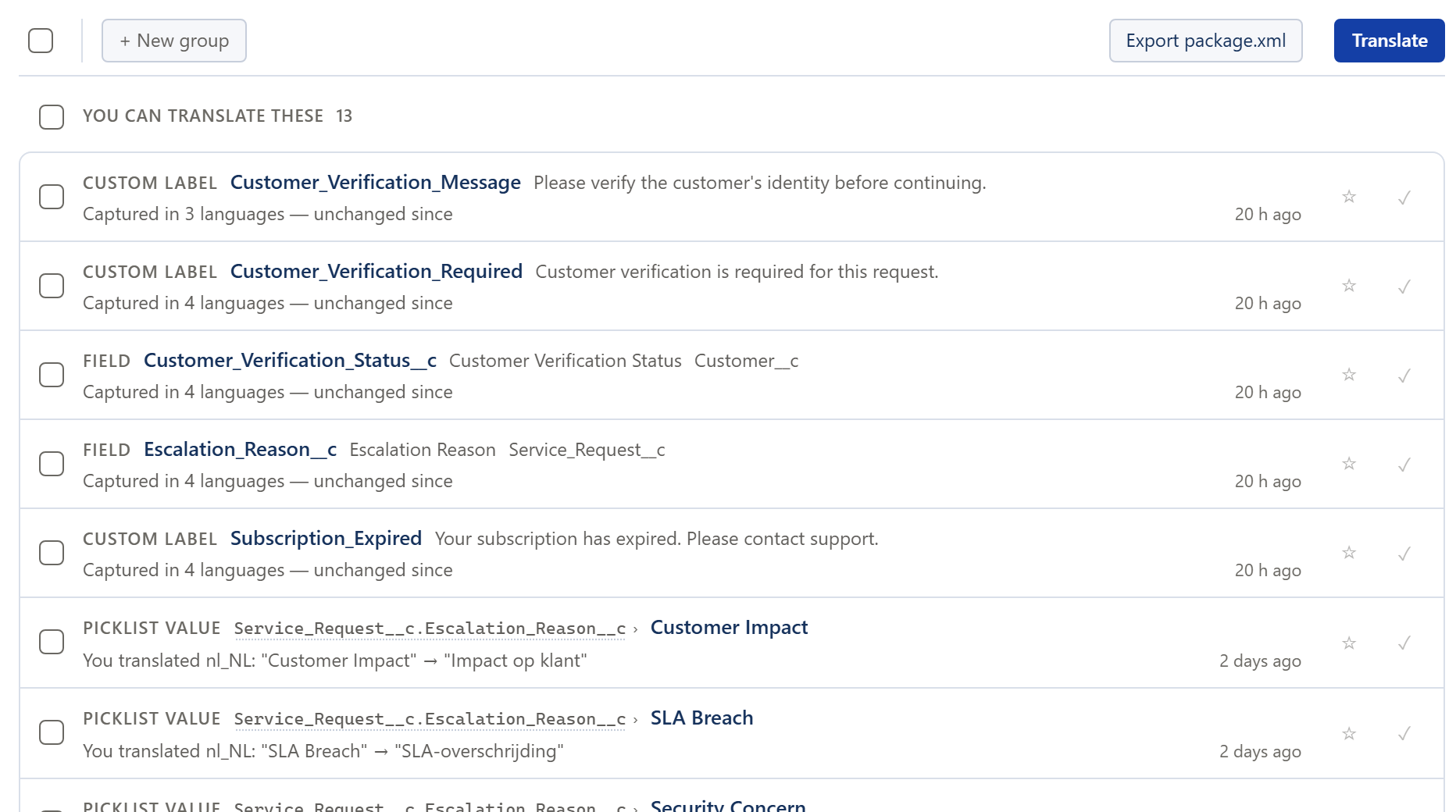
The Workspace is the working set: what you pinned, and every component you edited, with what it said before. Group it the way the work is grouped, write down why something is there, and it tells you when a component you kept changes in the org afterwards — and in which language.
For anyone carrying a piece of work across days, or across a hand-over.
- Pins and edits
- Pin anything from Search or the inspector. An edit you make is captured automatically, with its value before and after.In Sextant's tab
- Groups and notes
- Groups for a release, a ticket or a team; a note on a component for what you decided and what you still need to ask.In Sextant's tab
- Changed since
- A kept component that moves in the org is marked, with the language that changed — so the working set stays true.In Sextant's tab
Compare
Environments side by side, and one org across time
A snapshot is a complete read of an org's translations at one moment. Two of them, from two orgs or from two moments of the same org, make a comparison — and the report always states which two reads it compares, and how old each is.
For the release manager checking what reached Production, and the team running several sandboxes of one company.
- Across orgs
- Production, UAT and Development in one report: what differs, what is missing, what exists in only one org. Find the Dutch that was finished in UAT and never deployed.In Sextant's tab
- Across time
- Two moments of one org, to see what a deployment actually changed. A tie between orgs is reported as no consensus — never as a winner.In Sextant's tab
- Org profiles
- A name, a group and a colour per org, used everywhere Sextant shows it. Production keeps its own mark whatever colour you choose. Salesforce never sees any of it.In Sextant's tab
Remember
A history built from evidence, labelled with its source
Salesforce records no author and no date for a translation change. Activity keeps what Sextant has evidence for — and labels each entry with where the evidence came from, so an entry nobody can attribute says Unknown instead of borrowing a name.
For whoever is asked what changed, and when — and has to answer honestly about what cannot be known.
- Observed changes
- What Sextant saw change between two reads of the org, with the value before and after.In Sextant's tab
- Deployments noticed
- A deployment landing in the org — including one this browser did not start — and what Sextant saw change around it.In Sextant's tab
- Export
- The history as a file, or a set of changes as a package.xml.In Sextant's tab
Release
From a change to a deployment you can stand behind
Every write says which org it is going to — its name, its environment and its colour — before it goes. Changes wait in one tray and deploy as a batch that fails or succeeds whole; saving straight to Production, or to an org Sextant has not identified, always asks.
For the admin shipping translations, and the developer who needs them in a release branch.
- The deploy tray
- Every queued change in one place, deployed as one batch. The current values are re-read first, and a colleague's newer change stops the batch instead of being overwritten.In Sextant's tab
- package.xml
- From a Workspace group or from a set of changes in Activity, to hand to the deployment tool you already use.In Sextant's tab
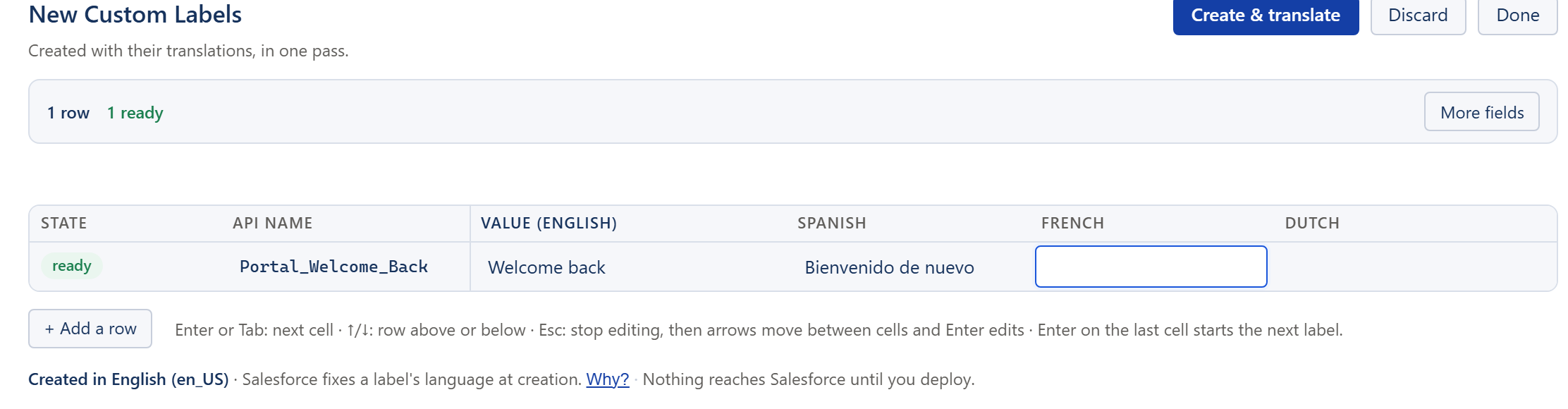
- New Custom Labels
- Create labels with every translation in one grid, checked against the org as you type, deployed as one batch.In Sextant's tab
How it works
Sextant is a Manifest V3 extension for Chrome and Edge. Its background service worker calls Salesforce's own REST, Tooling and Metadata APIs, as you, with the session you already have; the part that runs inside Lightning pages reads the text on screen to identify it and asks the worker for the rest.
It builds an index of the org's translatable metadata and keeps it in your browser's storage, so hover, Search and Activity answer without a round trip to Salesforce and a large org is not re-read on every page. The index says how old it is and how much of the org it covered, and a landed deployment invalidates it.
Every write goes through the same path: the current value is re-read first, a production org always asks, and a batch is what fails or succeeds — never half of it silently.
Requirements
- Chrome or Edge (any Chromium browser that installs Chrome Web Store extensions).
- Salesforce Lightning Experience. Sextant does not run in Classic.
- API Enabled on your user's profile or permission set: every read and write goes through Salesforce's APIs.
- Translation Workbench enabled, with at least one language, for translation data to exist at all.
- If Setup → Session Settings → Lock sessions to the domain in which they were first used is enabled, Sextant cannot connect: the background worker's session is rejected. It is the most common reason a fresh install appears not to connect.
Known limitations
Real ones, stated so nobody has to discover them.
- Editing covers nine types: Custom Labels, custom fields and custom picklist values — the last two only for custom (__c) members — plus record types, custom buttons and links, quick actions, layout sections, tabs and apps. Standard fields and standard picklist values are read-only on purpose. Object labels and related lists are deferred; standard buttons and tabs are Salesforce's own translations and stay read-only.
- Hover shows objects, fields, picklist values and Custom Labels. The other types are read and indexed, but kept out of the hover surface by design.
- A save through the Metadata API takes about a minute, almost all of it Salesforce's own deploy queue. Custom Labels use a faster path.
- Recently changed metadata may not appear immediately: the index has a freshness window and says how old it is, and a deployment Sextant notices invalidates it.
- Not validated against every org shape. Professional Edition and orgs with API Access Control restrictions have not been tested.
Try Sextant without installing it
The interactive demo runs the real Sextant interface and product logic in your browser, against a fictional Salesforce org. No installation, no Salesforce account and no sign-in.