How to find the Salesforce metadata behind text in Lightning
On this page 7 sections
Salesforce shows text; it does not say where the text came from. A few words on a Lightning record page can be a field label, a picklist value, a record type, a Custom Label read by a component, a layout section heading, a button or a related list title — each defined, and translated, somewhere different. To find the API name behind it: if you know the object, start in Object Manager; if the text may be a Custom Label, search the labels by their value; and if you do this often, query the metadata or use a browser tool that reads it from the page.
Why this is harder than it looks
- The same words can have several owners. Two objects can each have a field labelled Assigned Agent; a Custom Label can hold the same words as a field label; a record type and a picklist value can share a name.
- Translation hides the source. In a user's language the page shows the translation, while Setup mostly shows the default language. A ticket that quotes the Dutch has to be matched against the Dutch.
- Standard labels can be renamed. Rename Tabs and Labels changes what a standard field or object is called, per language, without changing its API name.
- Components can print anything. A Lightning component may print a Custom Label, a field label it reads from metadata, or a string written into its code — and only the first two can be translated.
In Setup, when you know the object
- Setup → Object Manager → the object → Fields & Relationships.
- Type the label into the quick-find box. The list shows each field's Field Label and Field Name — the API name.
- Open the field to see its type, its help text and, for a picklist, where its values come from.
For a picklist value, open the field and read its values: each value's label and API name are side by side. For a section heading, open the page layout (or the Lightning record page in Lightning App Builder) and look for the section. For a button, the object's Buttons, Links, and Actions.
When the text might be a Custom Label
Setup → Custom Labels lists every label with its value. A label only appears on a page because something reads it, so the component is the other half of the confirmation: in its source, a Custom Label is referenced by name ($Label.c.Name, @salesforce/label/c.Name, System.Label.Name).
With a query
When you do this more than once a week, a query is faster than clicking. For fields, SOQL on FieldDefinition returns labels and API names. A query on it must filter on the object, and it can filter on the label as well:
SELECT QualifiedApiName, Label, DataType
FROM FieldDefinition
WHERE EntityDefinition.QualifiedApiName = 'Account'
  AND Label = 'Customer Status'
For Custom Labels, the Tooling API has them as ExternalString records, and their translations as ExternalStringLocalization; both can be filtered on Value:
SELECT Name, Value, NamespacePrefix
FROM ExternalString
WHERE Value LIKE '%identity document%'
SELECT ExternalStringId, Language, Value
FROM ExternalStringLocalization
WHERE Value LIKE '%identiteitsbewijs%'The second query is the one for a ticket that quotes another language. In the Developer Console, tick Use Tooling API for the Custom Label queries. What no query can tell you is which of several matches a given page is showing.
Browser tools
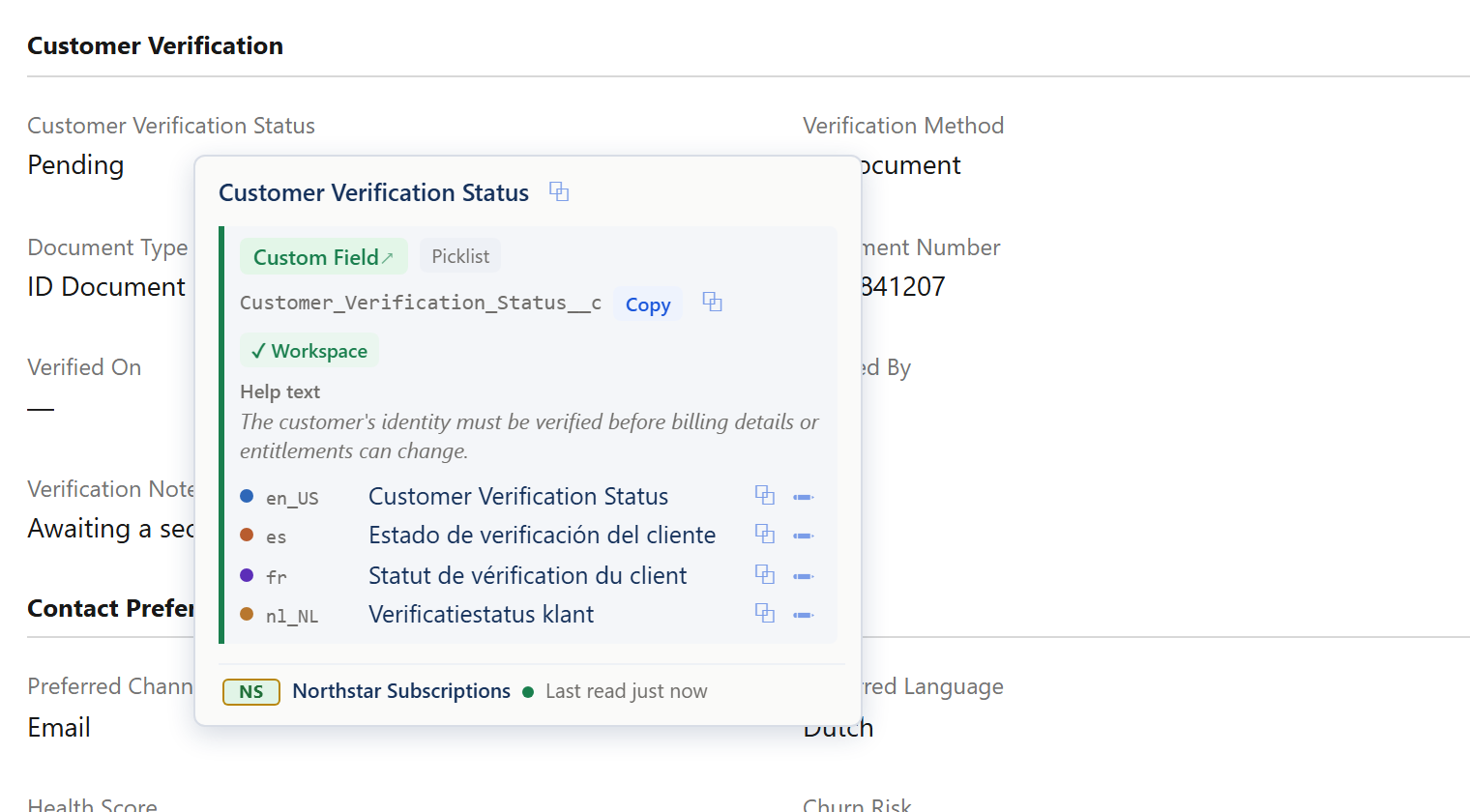
Several Chrome extensions read this from the page instead. Those that show API names next to the fields of a record page — Salesforce Inspector Reloaded has such an option, and smaller extensions do only that — answer the most common case, a field label, at a glance. They are not built for translations, Custom Labels or section headings.
A quick way to decide where to look
| The text on the page is… | It is most likely… | Start in |
|---|---|---|
| Beside a value, where a field's name goes | a field label | Object Manager → Fields & Relationships |
| Inside a field, one of a fixed set | a picklist value, or a record type | the field's values; Record Types |
| A heading above a group of fields | a layout section | the page layout, or Lightning App Builder |
| A button or an action | a custom button, link or quick action | Buttons, Links, and Actions |
| A title over a list of related records | a related list | the page layout's related lists |
| A sentence in a custom component | a Custom Label, or text in the code | Custom Labels; the component's source |
Related guides
- Translating a Salesforce org: where every label is translatedThe map — which Setup page translates which label, how to translate many at once, the metadata types behind them, and how to check the result.
- How to translate Custom Labels in SalesforceThree ways to translate a Custom Label, how code picks the translation at runtime, the three different length limits, and the retrieve pitfall that catches developers.
- How to find missing translations in SalesforceUntranslated and out-of-date labels, found systematically — with Translation Workbench's export and grid, on the pages users see, and as a release checklist.