Translating a Salesforce org: where every label is translated
On this page 8 sections
Salesforce does not translate an org from one place. Most admin-defined labels — custom field labels and help text, picklist values, buttons, layout sections, record types, validation messages — are translated in Translation Workbench (Setup → Translate). Object names and standard field labels are translated in Rename Tabs and Labels. Custom Labels can be translated from their own page as well as in Translation Workbench. Knowing which of these owns the text you are looking at is most of the work; this guide is the map.
Before you start: languages, translators and users
- Turn on Translation Workbench. In Setup, search for Translation Language Settings and click Enable. You need the Customize Application permission (Salesforce Help: enable Translation Workbench).
- Add each language on the same page, and assign its translators; that takes the Manage Translation permission. A language only reaches users once it is marked Active, so you can add one and leave it inactive while its translations are written — inactive languages are still included in exports and imports (adding languages and translators).
- Know which kind of language it is. Salesforce has three tiers. Fully supported languages translate Salesforce's own interface too. End-user languages translate the standard interface for users, but not Setup or Help. Platform-only languages (regional variants such as
en_AUorfr_CA) come with no Salesforce translation at all: only what you translate yourself appears in them (supported languages). - Users see the language set on their user record. A user changes it in their personal settings (Language & Time Zone); an admin can change it on the user. When a component has no translation for that language, Salesforce uses the org's default language — so a missing translation is silent: the label simply looks untranslated.
Where each label is translated
| What the user sees | Where you translate it | Metadata API type |
|---|---|---|
| A custom field's label or help text | Translation Workbench → Translate → Custom Field | CustomObjectTranslation |
| A standard field's help text | Translation Workbench → Standard Field Help | CustomObjectTranslation |
| A picklist value of a custom field | Translation Workbench → Picklist Value | CustomObjectTranslation |
| A value of a standard picklist (Industry, Lead Source …) | Translation Workbench → Picklist Value, choosing the standard object and field | StandardValueSetTranslation |
| A value of a global value set | Translation Workbench → Global Value Set | GlobalValueSetTranslation |
| A Custom Label | Setup → Custom Labels → the label → Translations, or Translation Workbench → Custom Labels | Translations |
| A custom button or link | Translation Workbench → Button and Link Label | CustomObjectTranslation |
| A section heading on a page layout | Translation Workbench → Layout Section | CustomObjectTranslation |
| A record type's name | Translation Workbench → Record Type | CustomObjectTranslation |
| A validation rule's error message | Translation Workbench → Validation Error Message | CustomObjectTranslation |
| An app's name, a web tab | Translation Workbench → App, Web Tab | Translations |
| Text in a screen flow or an autolaunched flow | Translation Workbench → Flow | Translations |
| An object's name, a standard field's label, a standard tab | Setup → Rename Tabs and Labels, per language | CustomObjectTranslation (object names) |
Salesforce keeps the complete list of what can be translated on one page: metadata available for translation. Three rows cause most of the confusion:
- An object's name is not in Translate. Standard and custom object names aren't available in Translation Workbench; their singular and plural forms — and, for languages that need it, details such as whether the name starts with a vowel sound — are set per language in Rename Tabs and Labels.
- Standard fields are renamed, not translated. A standard field's label per language also lives in Rename Tabs and Labels, not in the Custom Field list.
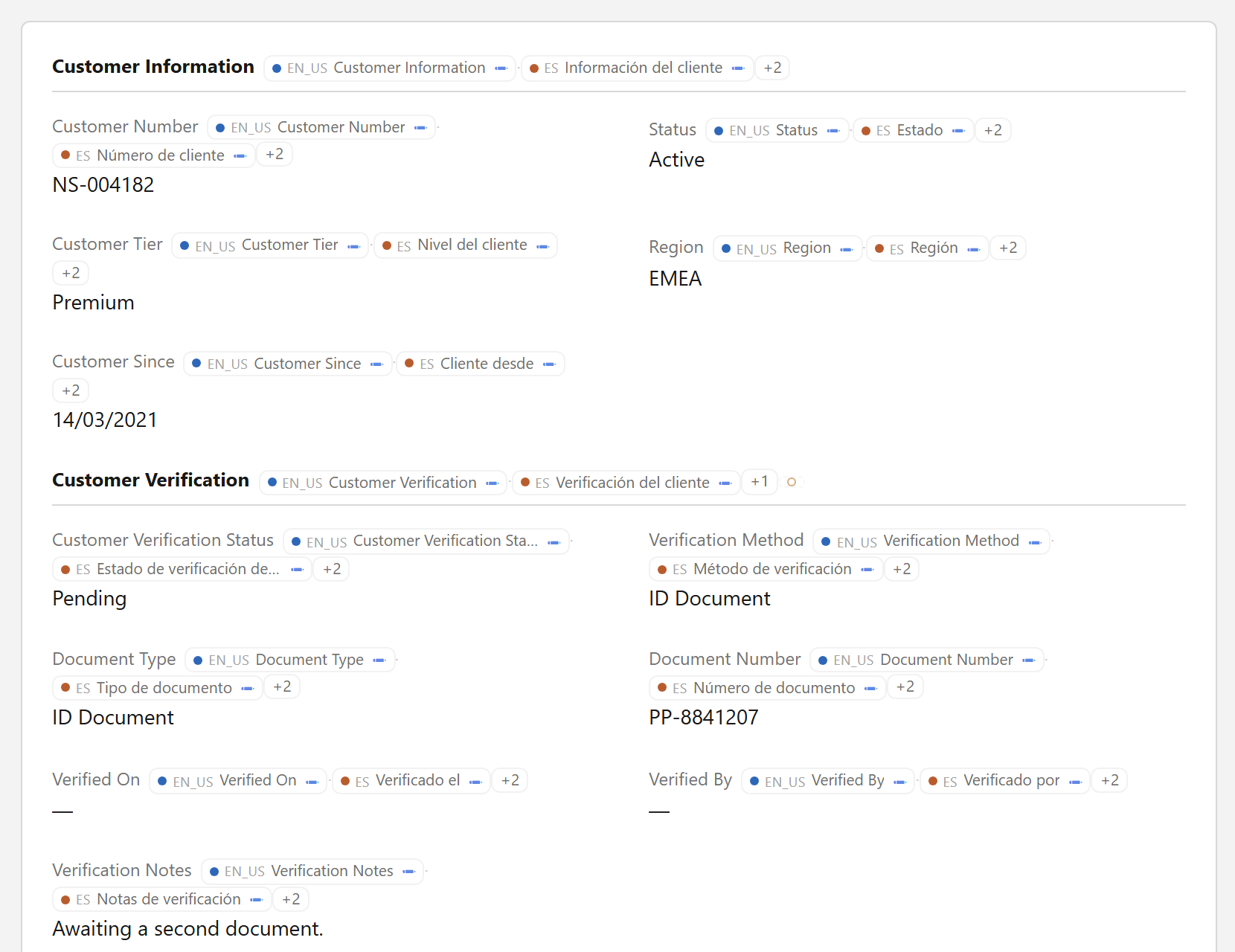
- The same words can come from different places. A record page may show a field label, a Custom Label used by a Lightning component and a layout section heading side by side, and nothing on the page says which is which. The guide to finding the metadata behind Lightning text covers how to tell.
Record data — a product's name, say — is a different feature, Data Translation; everything in this guide is about the labels of metadata.
Translating in Setup
For one label or a handful:
- Open Setup → Translate.
- Choose the Language, then the Setup Component (for example Custom Field), and the Object when the component belongs to one.
- Double-click the cell in the translation column, type the translation and save.
The grid has an Out of Date column: it flags a translation whose primary label was updated after it was translated — the only built-in signal that a translation may need another look (Salesforce Help: translate metadata labels). Custom Labels have a second route, from the label's own page; the Custom Labels guide covers both.
Translating many labels at once: export and import
For a release's worth of labels, or when translators work outside Salesforce, use the files (Salesforce Help: export metadata translation files):
- Setup → Export (Translation Workbench). Choose what to export: Source (every translatable label, to start a language), Outdated and untranslated (only what is missing or out of date) or Bilingual (source and current translation side by side, to review).
- Salesforce prepares the files, emails you a link and also saves them to your personal documents. They come as
.stfor as XLIFF (.xlf); Salesforce recommends XLIFF, which carries more information, such as a field's width. Exporting and importing need both the Manage Translation and the Create Documents permissions. - Translate the files, keeping each line's key untouched.
- Setup → Import the translated files.
Each entry's key names the component and the aspect of it — Salesforce's own example is CustomField.Account.Nickname.FieldLabel (the Source file format). That makes an export the most complete list of translatable text an org has, and the raw material for comparing translations between orgs.
For developers: the metadata behind the labels
Translations are metadata, and deploy like any other:
CustomObjectTranslation— one per object and language (Account-es): field labels and help text, the field's picklist values, record types, layout sections, buttons and links, quick actions, validation messages, and the object's name (caseValues).Translations— one per language (es): Custom Labels, apps, tabs, flows and other org-wide components. Only screen flows and autolaunched flows are supported for translation.GlobalValueSetTranslationandStandardValueSetTranslation— value sets shared by several fields, and standard picklists.
Retrieving them has one trap worth knowing before it costs an afternoon. Salesforce's own wording: when you retrieve translations, the files returned "only include translations for the other metadata types referenced in package.xml". Ask for Translations alone and you get an almost empty file; ask for it together with CustomLabels and you get the labels' translations. The same holds for CustomObjectTranslation and the fields, record types and layouts it translates.
Checking the result
A translation is only finished when someone has seen it where users will. The usual way is to switch your own language, or log in as a test user in that language, and walk the pages that changed. Two things make this slow: a missing translation looks exactly like an untranslated label, and a wrong one gives no hint of which Setup page it came from. The guide to finding missing translations sets out a systematic check.
What Salesforce does not tell you
- Who changed a translation, and when. Salesforce keeps no author or date for a translated value. In the tests behind Sextant's Activity view, on a real org: saving a translation in Translation Workbench wrote no Setup Audit Trail entry; the Metadata API reported the calling user and a 1970 date for every
CustomObjectTranslationfile, whoever had edited it; and a Custom Label's translation showed no Modified By, although the label itself did. If you need that history, it has to be recorded by whoever makes the change — or observed by comparing reads over time. - Where a label on the page comes from. Setup goes from a component to its translations; nothing goes from the words on a page to the component. That is the gap the metadata-from-label guide is about.
Related guides
- How to translate Custom Labels in SalesforceThree ways to translate a Custom Label, how code picks the translation at runtime, the three different length limits, and the retrieve pitfall that catches developers.
- How to translate picklist values in SalesforceCustom picklists, global value sets and standard picklists each keep their translations in a different place; how SOQL, reports and formulas treat them; and a checklist for a value that will not translate.
- How to find missing translations in SalesforceUntranslated and out-of-date labels, found systematically — with Translation Workbench's export and grid, on the pages users see, and as a release checklist.