How to translate Custom Labels in Salesforce
On this page 8 sections
A Custom Label is a piece of text that code and configuration refer to by name — Upload_Document_Title — instead of writing the words themselves, so the words can change and be translated without touching the code. To translate one, open it in Setup → Custom Labels and add a translation in its Translations related list, or translate many at once in Translation Workbench. At runtime Salesforce gives each user the translation for their language, and the label's own value when there is none.
1. From the label's own page
The quickest route for one label (Salesforce Help: translate custom labels):
- Setup → Custom Labels, and open the label by its name.
- In the Translations related list, click New. (For a label that comes from a managed package, this is where local translations and overrides go.)
- Choose the Language, enter the Translation Text, and save.
The language must be one added in Translation Language Settings. The translation replaces the label's value for users whose language it is.
2. In Translation Workbench, many at once
For more than a few labels, or for a translator who should not have access to the labels themselves:
- Setup → Translate.
- Choose the Language and the Setup Component Custom Labels.
- Double-click a label's translation cell, type, and save.
The grid lists every Custom Label with its current translation in that language, so gaps are visible at a glance, and its Out of Date column flags a translation whose label changed after it was translated. For a whole release, Translation Workbench's Export (choose Outdated and untranslated to get only the gaps) and Import carry Custom Labels with everything else — see where every label is translated.
3. As metadata, in a deployment
In source control a label and its translations live in two different places, and that is the first thing to get right:
- The label itself — its name, category, and value in the default language — is a
CustomLabelinside the org'sCustomLabelsmetadata (labels/CustomLabels.labels-meta.xmlin a Salesforce DX project). - Each translation is in the
Translationsfile for its language (translations/es.translation-meta.xml), as acustomLabelsentry with the label'snameand the translatedlabel.
A minimal Spanish translation file with one label:
<?xml version="1.0" encoding="UTF-8"?>
<Translations xmlns="http://soap.sforce.com/2006/04/metadata">
    <customLabels>
        <label>Subir documento de identidad</label>
        <name>Upload_Document_Title</name>
    </customLabels>
</Translations>
Two things catch almost everyone:
- Retrieving translations needs the labels in the same retrieve. Salesforce returns translations "only for the other metadata types referenced in package.xml". A
package.xmlthat asks forTranslationsalone brings back an almost empty file; listCustomLabels(Salesforce's own example uses the wildcard*) beside it and the labels' translations come back. - A translation belongs with its label. Deploy the label before its translations, or in the same deployment — a translation for a label the target org does not have yet has nothing to attach to.
The limits — three of them
- An org can have up to 5,000 Custom Labels (managed packages' labels do not count), and a label's value can be up to 1,000 characters (about custom labels).
- In the Metadata API, a translation's
labelis limited to 765 characters. - In the Tooling API, where a translation is an
ExternalStringLocalizationrecord, itsValuecan be much longer.
So a translation longer than 765 characters, written through Setup or the Tooling API, will not round-trip through a Translations retrieve and deploy. Keep long texts short enough for the strictest of the three, or keep them out of labels.
How code picks the translation
Every way of reading a label returns the text in the running user's language, falling back to the label's own value:
| Where | How it is referenced |
|---|---|
| Apex | System.Label.Upload_Document_Title |
| Lightning Web Components | import title from '@salesforce/label/c.Upload_Document_Title'; |
| Aura | $A.get("$Label.c.Upload_Document_Title") or {!$Label.c.Upload_Document_Title} |
| Visualforce | {!$Label.Upload_Document_Title} |
| Flow | the $Label global variable in a formula or a text template |
Because the language is the running user's, a label read in an automated context — a scheduled job, an email built by a process — is in that context user's language, not necessarily the recipient's. Apex can also ask for a specific language: System.Label has get(namespace, label, language), and translationExists(namespace, label, language) to check first.
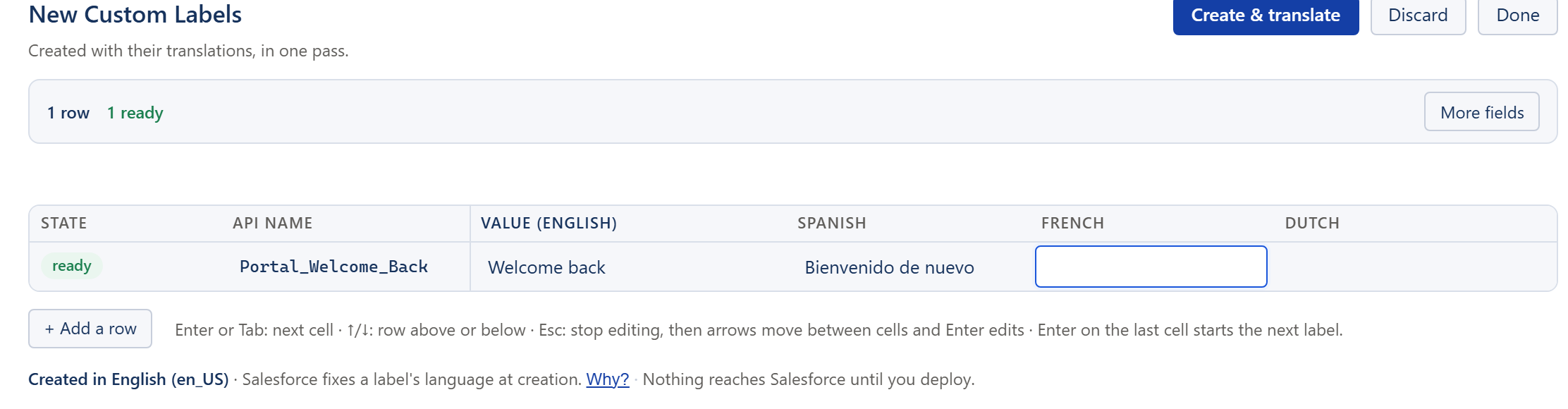
When a new label is created, translate it in the same change
A label created without translations is invisible in the target languages' QA until someone happens to look: Salesforce shows the default value, so nothing looks broken. The dependable habit is to create a label and its translations together — in the same Setup session, the same export batch, or the same commit — and to check new labels in the Outdated and untranslated export before a release.
Common problems
- "The translation does not show." Check the user's language (their user record), that the language is Active in Translation Language Settings, and that the component really reads the label: a string written into a component's code looks like a label but has nothing to translate.
- "I cannot tell which label a string on the page is." Several labels can hold the same words, and a field label or a layout section can match them too. The guide to finding the metadata behind Lightning text covers searching labels by their value and the other options.
- "The retrieve has no translations." List
CustomLabelsin the samepackage.xml(above). - "Someone changed a translation and nobody knows who." Salesforce records no author for a translated value; see what Salesforce does not tell you.
Related guides
- Translating a Salesforce org: where every label is translatedThe map — which Setup page translates which label, how to translate many at once, the metadata types behind them, and how to check the result.
- How to find the Salesforce metadata behind text in LightningA word on a Lightning page can be a field, a picklist value, a Custom Label, a section or a button. How to tell which, and find its API name — in Setup, with a query, or from the page itself.
- How to compare translations between Salesforce orgsSandbox against production — with Translation Workbench's Bilingual export, or a Metadata API retrieve and a diff — and what each comparison can and cannot tell you.